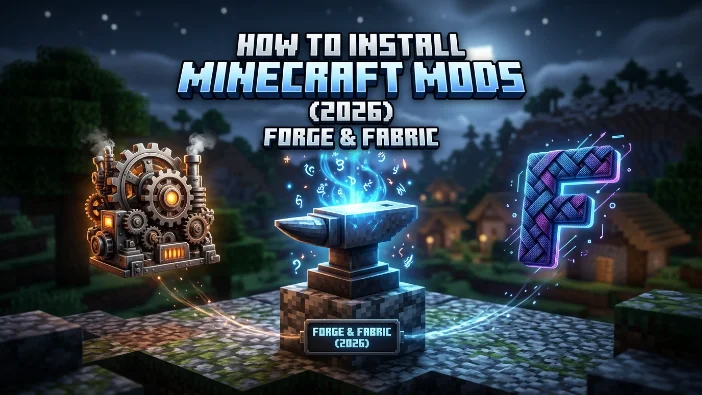
Minecraft Java Edition doesn’t support mods natively — you need a mod loader sitting between the base game and the mod files before anything will actually run. Forge and Fabric are the two most widely used loaders for this, and once you understand how they work, installing mods takes minutes rather than hours. This guide walks through both loaders end to end: what they actually do, how to install each one correctly, where mod files go, how to avoid the most common installation mistakes, and how to fix it when a mod crashes the game.
What a Mod Loader Actually Does
A mod is just code that changes part of Minecraft — new items, new mechanics, new dimensions, or performance tweaks. Since the base game has no built-in way to load that code safely, a mod loader acts as the middle layer: it intercepts Minecraft’s startup process, reads every mod file in your mods folder, resolves how they hook into the game, and loads them together without you needing to edit any of Minecraft’s original files directly. This is also why mods are tied so tightly to both a specific Minecraft version and a specific loader — a mod built for Minecraft 1.21 on Fabric will not load on 1.20, and a Fabric mod will never work with Forge installed instead, or the reverse.
Forge vs Fabric vs NeoForge: Picking the Right One
Forge is the original mod loader, active since 2011, and it holds the largest historical mod library of any loader in existence. If you’re chasing an older modpack, especially anything built before Minecraft 1.20, Forge is very often the only option that supports it. Its downside is that development on newer versions has slowed considerably, and it’s increasingly treated as the legacy choice for current releases.
Fabric is the lightweight, fast-updating alternative. It’s the loader behind major performance mods like Sodium and Lithium, and its ecosystem typically supports a brand-new Minecraft version within days of release. Almost every Fabric mod also requires a separate dependency called Fabric API, which you install as its own file inside the same mods folder.
NeoForge, forked from Forge in 2023 by most of the original Forge development team, has become the de-facto standard for newer content. If you’re modding Minecraft 1.20.5 or later and want access to the Forge-style mod ecosystem, most major new mods and modpacks now target NeoForge rather than classic Forge.
The rule that decides this for you every time: check what loader the specific mod or modpack you want requires, and install that one. Don’t pick a loader first and hope mods fit it afterward.
Before You Install Anything
Two checks prevent the majority of installation failures before they happen:
- Confirm your exact Minecraft version. Open the Minecraft Launcher and look at the bottom-left corner of the main menu for the precise version number (e.g., 1.21.4, not just “1.21”). Every mod and loader install needs to match this exactly.
- Make sure Java is installed. Minecraft 1.17 and later bundles its own Java runtime for actually running the game, but mod loader installers typically need a separately installed Java runtime to open and run their
.jarinstaller file. If double-clicking a Forge or NeoForge installer opens it in a program like WinRAR or 7-Zip instead of launching an install wizard, that’s the tell-tale sign Java isn’t installed on your system.
Installing Forge or NeoForge Step by Step
- Go to the official Forge site (files.minecraftforge.net) or the official NeoForge site, and download the installer that matches your exact Minecraft version.
- Double-click the downloaded
.jarinstaller file. A setup window will open. - Leave the option set to “Install client”, confirm the Minecraft version shown matches what you checked earlier, and click OK.
- Wait for the installer to finish — this typically takes under a minute.
- Open the Minecraft Launcher. A new profile (Forge or NeoForge, matching your version) will now appear in the profile dropdown next to the Play button.
- Launch that profile once with no mods installed yet, just to confirm it boots into the game normally before adding anything.
Installing Fabric Step by Step
- Go to the official Fabric site and download the installer for your operating system.
- Open the installer. Confirm the Minecraft version dropdown at the top matches the version you’re targeting.
- Click Install, then OK to confirm.
- Open the Minecraft Launcher — a new “Fabric Loader” profile will now be available in the dropdown.
- Download Fabric API separately from Modrinth or CurseForge and place the
.jarfile directly into your mods folder — the vast majority of Fabric mods will not function without it. - Launch the Fabric profile once with just Fabric API installed to confirm the base setup works before adding more mods.
Finding Your Mods Folder
Mod files are plain .jar files that get placed directly into a folder named mods inside your Minecraft installation — no extracting or unzipping required. The location depends on your operating system:
- Windows:
%appdata%\.minecraft\mods(paste this directly into File Explorer’s address bar) - macOS:
~/Library/Application Support/minecraft/mods - Linux:
~/.minecraft/mods
If the mods folder doesn’t exist yet, launch the Forge, NeoForge, or Fabric profile once first — the loader creates the folder automatically on its first run.
Downloading Mods Safely
Only download mod files from CurseForge or Modrinth. Both platforms actively review uploaded files and maintain moderation systems, which is the closest thing modding has to an official safety layer. On either site, before downloading anything, check three things on the mod’s page: the supported Minecraft version, the required mod loader (Forge, NeoForge, or Fabric — they are not interchangeable), and whether the mod lists any required dependencies, such as Fabric API, that you’ll also need to download and place in the same folder.
Putting It All Together
Once your loader is installed and your mods folder is confirmed:
- Drag or copy every downloaded
.jarmod file directly into the mods folder — don’t extract or unzip them. - If you’re on Fabric, confirm Fabric API is sitting in that same folder alongside your other mods.
- Open the Minecraft Launcher, select the correct loader profile from the dropdown, and click Play.
- Once the game loads, click Mods from the main menu (this button only appears once a loader is active) to confirm every mod you installed actually loaded.
Fixing a Crash After Adding Mods
If Minecraft crashes on startup after you’ve added mods, the cause is almost always one of three things, in order of likelihood:
- Version mismatch — a mod built for a different Minecraft version than the one you’re running.
- Loader mismatch — a Forge or NeoForge mod dropped into a Fabric setup, or the reverse; the two ecosystems are never interchangeable.
- A missing dependency — most commonly, a Fabric mod installed without Fabric API sitting alongside it.
To confirm which mod is responsible, open .minecraft/logs/latest.log in any text editor and scroll to the bottom — the crash log will name the specific mod that failed to load, which is far faster than removing mods one at a time to guess.
Installing Mods on a Server, Briefly
Server-side installation follows the same loader logic, with one extra distinction that trips people up: mods that only affect server-side logic (performance, world generation rules) need to be installed on the server alone, but any mod that adds new blocks, items, or mobs must be installed on both the server and every connecting client, with matching versions on each side — a mismatch here is a common cause of players being unable to join. Forge and Fabric mods remain incompatible with each other on a server exactly as they are on a single-player install, so the same loader choice applies.
Shader Packs Are a Separate System
Shader packs aren’t mods and don’t go in the mods folder — they’re visual presets that require a separate rendering mod to function: Iris Shaders on Fabric, or OptiFine on Forge. Once installed, shader pack files go into .minecraft/shaderpacks/, a folder distinct from mods, and are enabled from Options → Video Settings → Shaders inside the game itself.
Frequently Asked Questions
Can I run Forge and Fabric mods together in the same install?
No. Forge, NeoForge, and Fabric are separate, incompatible ecosystems — a mod built for one will never load under another, regardless of the Minecraft version matching.
Do I need Fabric API for every Fabric mod?
Not every single one, but the large majority of Fabric mods depend on it, and a missing Fabric API file is one of the most common causes of Fabric mods silently failing to load or the game crashing on startup.
Why does a mod I downloaded not show up in the game?
Most often the mod’s target Minecraft version doesn’t match the version you launched, or it was built for a different loader than the one installed. Re-check both against your exact version number before assuming the mod itself is broken.
Is it safe to download mods from any website that offers them?
No — stick to CurseForge and Modrinth specifically. Both platforms actively review and moderate uploads, while random third-party sites carry a real risk of bundled malware with no equivalent oversight.
Should I use Forge or NeoForge for a modern modpack?
For Minecraft 1.20.5 and later, NeoForge has effectively replaced classic Forge as the target for most new mods and modpacks. Use classic Forge only when a specific older modpack or mod explicitly requires it.