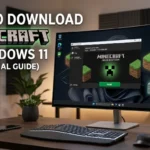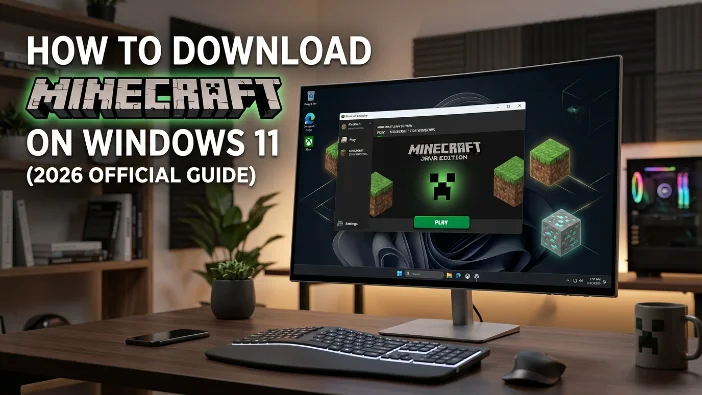
If you’re using a Windows 11 PC and want to download Minecraft safely in 2026, this guide walks you through the official installation process, system requirements, pricing, and troubleshooting steps.
Always download Minecraft from official sources to ensure security, performance, and update compatibility.
Can You Run Minecraft on Windows 11?
Yes. Minecraft is fully compatible with Windows 11. Both Java Edition and Bedrock Edition are optimized for modern Windows systems and support the latest drivers, graphics updates, and performance improvements.
Windows 11 users benefit from:
- Improved GPU scheduling
- Better memory management
- DirectX 12 support
- Enhanced gaming mode performance
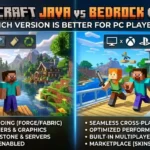
Minecraft Editions Available for Windows 11
Before downloading, understand the two main editions available for PC users in the United States.
Minecraft Java Edition
Best for:
- Modding support
- Custom servers
- Advanced redstone mechanics
- PC-only players
Minecraft Bedrock Edition (Windows Edition)
Best for:
- Cross-platform play
- Playing with Xbox, PlayStation, Switch users
- Smoother performance on mid-range PCs
When you purchase Minecraft for PC, you typically get access to both editions through the Minecraft Launcher (depending on the bundle available in 2026).
Official Way to Download Minecraft on Windows 11
Follow these steps carefully.
Step 1: Visit the Official Minecraft Website
Go to the official Minecraft website (minecraft.net).
Avoid third-party download sites to prevent malware or outdated versions.
Step 2: Sign In or Create a Microsoft Account
Minecraft requires a Microsoft account for purchase and login.
If you already use Xbox, Outlook, or Windows services, you likely already have one.
Step 3: Purchase Minecraft
Select the PC version and complete the secure checkout process.
In the United States, Minecraft typically costs around:
- $29.99 (Standard PC Edition bundle)
Pricing may vary during promotions.
Step 4: Download the Minecraft Launcher
After purchase:
- Download the official Minecraft Launcher.
- Open the installer file.
- Follow the installation prompts.
Step 5: Install and Launch
Once installed:
- Open the Minecraft Launcher.
- Select Java Edition or Bedrock Edition.
- Click Install.
- After installation completes, click Play.
Your game will now run on Windows 11.
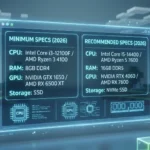
Minecraft System Requirements for Windows 11 (2026)
Minimum Requirements:
- CPU: Intel Core i3 (10th Gen) or AMD Ryzen 3
- RAM: 8GB
- GPU: NVIDIA GTX 960 or AMD RX 560
- Storage: 4GB available
- OS: Windows 10 or Windows 11 (64-bit)
Recommended Requirements:
- CPU: Intel Core i5 (12th Gen) or better
- RAM: 16GB
- GPU: RTX 2060 or higher
- SSD storage for faster loading
For ray tracing support (Bedrock Edition), you need an RTX-capable graphics card.
How to Choose Between Java and Bedrock on Windows 11
Choose Java Edition if:
- You want mods
- You prefer custom servers
- You enjoy technical redstone builds
Choose Bedrock Edition if:
- You want cross-platform multiplayer
- You play with console friends
- You want optimized performance on lower-end PCs
Many players in the USA choose based on whether their friends use console or PC.
How to Update Minecraft on Windows 11
Minecraft updates automatically through the launcher.
To manually check:
- Open the Minecraft Launcher.
- Select Latest Release.
- Enable automatic updates.
For Bedrock Edition, updates may also appear in the Microsoft Store.
Common Installation Problems and Fixes
Minecraft Launcher Not Installing
Solution:
- Run installer as administrator.
- Disable temporary antivirus interference.
- Ensure Windows 11 is fully updated.
Game Crashes on Launch
Solution:
- Update GPU drivers.
- Allocate more RAM in Java settings.
- Close background applications.
Microsoft Login Issues
Solution:
- Log out and log back in.
- Reset Microsoft Store cache.
- Check internet connection.
Is It Safe to Download Minecraft from Third-Party Sites?
No. Downloading Minecraft from unofficial websites can expose your PC to:
- Malware
- Outdated files
- Account theft risks
- Corrupted game versions
Always use official Microsoft and Minecraft sources.
Do You Need Xbox Game Pass?
In 2026, Minecraft may be available through Xbox Game Pass for PC. If you are subscribed, you can install it directly from the Xbox app without separate purchase.
Check your Game Pass library to confirm availability.
Frequently Asked Questions
Is Minecraft free on Windows 11?
No. Minecraft requires a one-time purchase unless accessed through Game Pass.
Can Windows 11 run Minecraft smoothly?
Yes. Windows 11 is optimized for modern gaming and runs Minecraft efficiently on compatible hardware.
Do I need Java installed separately?
No. The Minecraft Launcher manages the required Java runtime for Java Edition.
Is Minecraft better on Windows 11 than Windows 10?
Performance is similar, but Windows 11 offers better resource management and newer driver support.
Final Thoughts
Downloading Minecraft on Windows 11 in 2026 is straightforward when using official sources. The game runs smoothly on modern hardware, supports both Java and Bedrock editions, and offers cross-platform play options for multiplayer.
For the best experience:
- Keep Windows updated
- Update GPU drivers
- Use SSD storage
- Download only from official sources