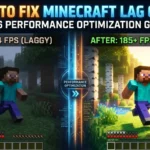
Minecraft is optimized better than ever in 2026, but players still experience lag due to hardware limitations, incorrect settings, outdated drivers, or server issues. Lag can appear as low FPS, stuttering, delayed chunk loading, or multiplayer latency.
This guide explains how to fix Minecraft lag on PC step by step, whether you’re using Java Edition or Bedrock Edition.
Types of Minecraft Lag
Before fixing the issue, identify what type of lag you’re experiencing.
FPS Lag
- Low frame rate
- Screen stuttering
- Game feels choppy
Usually caused by GPU, RAM, or graphics settings.
Server Lag
- Blocks reappear after breaking
- Delayed mob movement
- Multiplayer desync
Usually caused by hosting or internet issues.
Chunk Loading Lag
- World loads slowly
- Terrain appears late
- Freezing when exploring
Often related to storage speed or render distance.
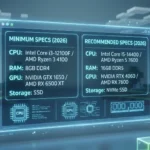
Check Your PC Meets 2026 Requirements
Minimum recommended for smooth play:
- 8GB RAM (16GB preferred)
- SSD storage
- Modern i5 or Ryzen 5 CPU
- GTX 1660 or better GPU
If your PC barely meets minimum specs, lowering graphics settings is essential.
Lower In-Game Video Settings
Open Settings > Video Settings and adjust:
- Reduce Render Distance (8–12 chunks recommended)
- Turn off Fancy Graphics
- Disable Clouds
- Lower Particles
- Turn off V-Sync (if causing input delay)
- Set Graphics to Fast instead of Fancy
These changes significantly increase FPS on mid-range systems.
Allocate More RAM (Java Edition Only)
Java Edition allows manual RAM allocation.
Steps:
- Open Minecraft Launcher
- Go to Installations
- Select your version
- Click More Options
- Adjust JVM Arguments
Recommended:
- 4GB allocation for vanilla
- 6–8GB for modded
Do not allocate more than half your system RAM.
Update Graphics Drivers
Outdated GPU drivers are a major cause of lag.
Update from official sources:
- NVIDIA GeForce Experience
- AMD Adrenalin Software
- Intel Graphics Driver tool
Restart PC after updating.
Install Performance Mods (Java Edition)
Performance mods can dramatically improve FPS.
Popular 2026 options:
- OptiFine
- Sodium
- Lithium
- Phosphor
Sodium is widely preferred for significant FPS boosts.
Install only from trusted mod platforms.
Enable Windows 11 Game Mode
Windows 11 includes built-in optimization.
To enable:
- Open Settings
- Go to Gaming
- Turn on Game Mode
This prioritizes system resources for Minecraft.
Close Background Applications
Before launching Minecraft:
- Close browsers
- Disable startup apps
- Stop recording software
- Exit unnecessary launchers
Freeing RAM improves stability.
Install Minecraft on SSD
If installed on HDD, you may experience:
- Slow world loading
- Chunk generation lag
- Freezing while exploring
Moving Minecraft to SSD improves performance significantly.
Fix Multiplayer Lag
If lag only happens in multiplayer:
- Choose a server closer to your US location
- Use wired Ethernet instead of Wi-Fi
- Restart router
- Avoid peak internet usage hours
For server owners, upgrade hosting RAM or switch to a US-based data center.
Reduce Mods and Resource Packs
Too many mods or high-resolution texture packs can:
- Lower FPS
- Increase RAM usage
- Cause crashes
Remove unused mods and test performance again.
Adjust Java Priority (Advanced)
You can increase Java priority in Task Manager:
- Launch Minecraft
- Open Task Manager
- Find Java process
- Right-click > Set Priority > High
Use carefully and avoid Real-time priority.
Check for Overheating
Overheating can throttle CPU/GPU performance.
Check:
- Laptop vents
- Dust buildup
- CPU temperatures
Use cooling pads for gaming laptops.
When to Upgrade Hardware
Consider upgrading if:
- FPS remains under 40 on low settings
- CPU usage constantly at 100%
- System has only 8GB RAM with heavy multitasking
Best upgrades for Minecraft:
- Add RAM (16GB total)
- Install SSD
- Upgrade GPU
Minecraft benefits more from CPU single-core performance than extreme GPU power
Frequently Asked Questions
Why is Minecraft lagging on a good PC?
Incorrect settings, outdated drivers, or background apps often cause lag even on powerful systems.
Does increasing RAM improve FPS?
It helps stability, especially in Java Edition, but GPU and CPU also matter.
Is Bedrock less laggy than Java?
Yes. Bedrock Edition is better optimized for performance on most systems.
Does render distance affect FPS?
Yes. Higher render distance significantly reduces performance.
Final Thoughts
Minecraft lag on PC in 2026 is usually fixable without upgrading hardware. Start with graphics settings, update drivers, allocate proper RAM, and ensure the game runs on SSD storage.
For most players in the United States, optimizing settings and using performance mods provides noticeable improvements without additional cost.
If performance issues continue, hardware upgrades like 16GB RAM or a modern GPU can dramatically improve gameplay smoothness.